How to Use Group Announcement
What is a Group Announcement?
A Group Announcement is a powerful tool for Group Owners and Administrators to share important information with all members in a clear and structured way. It ensures that critical updates, event details, or rules are easily visible to everyone, reducing the chance of messages getting lost in the general chat.
Key Features:
- Create Announcements: Post text, use rich text formatting, and insert emojis.
- Reply Function: Members can discuss the announcement in a dedicated thread.
- Edit & Delete: Easily update or remove announcements after posting.
- Flexible Permissions: Control who can post announcements via group management settings (default: Owner/Admin only).
How to Create a Group Announcement
- 💻Desktop Users
- 📱Mobile Users
- Open your target group chat.
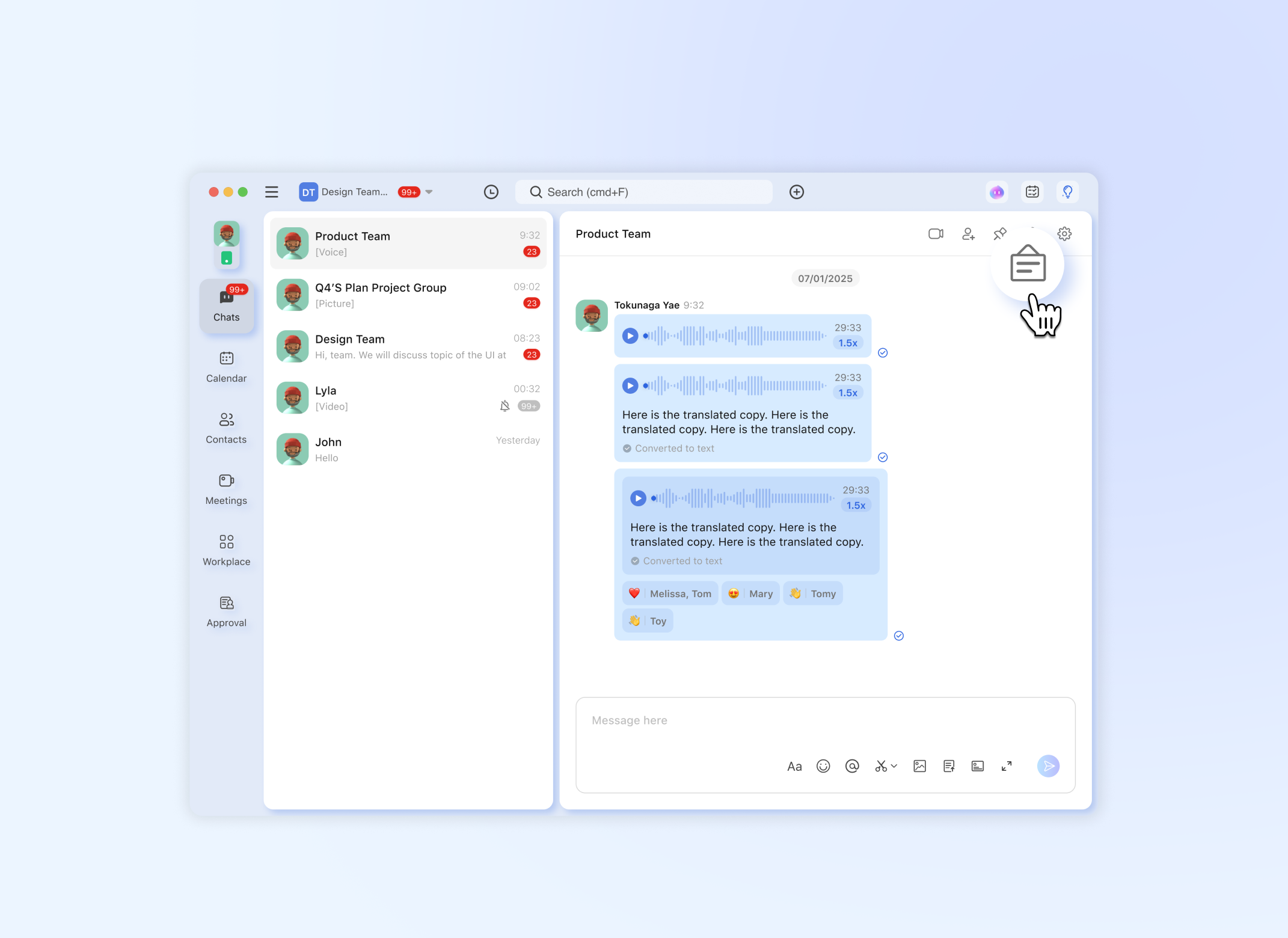
- Locate and click the "Announcement"
 in the top-right corner of the chat window.
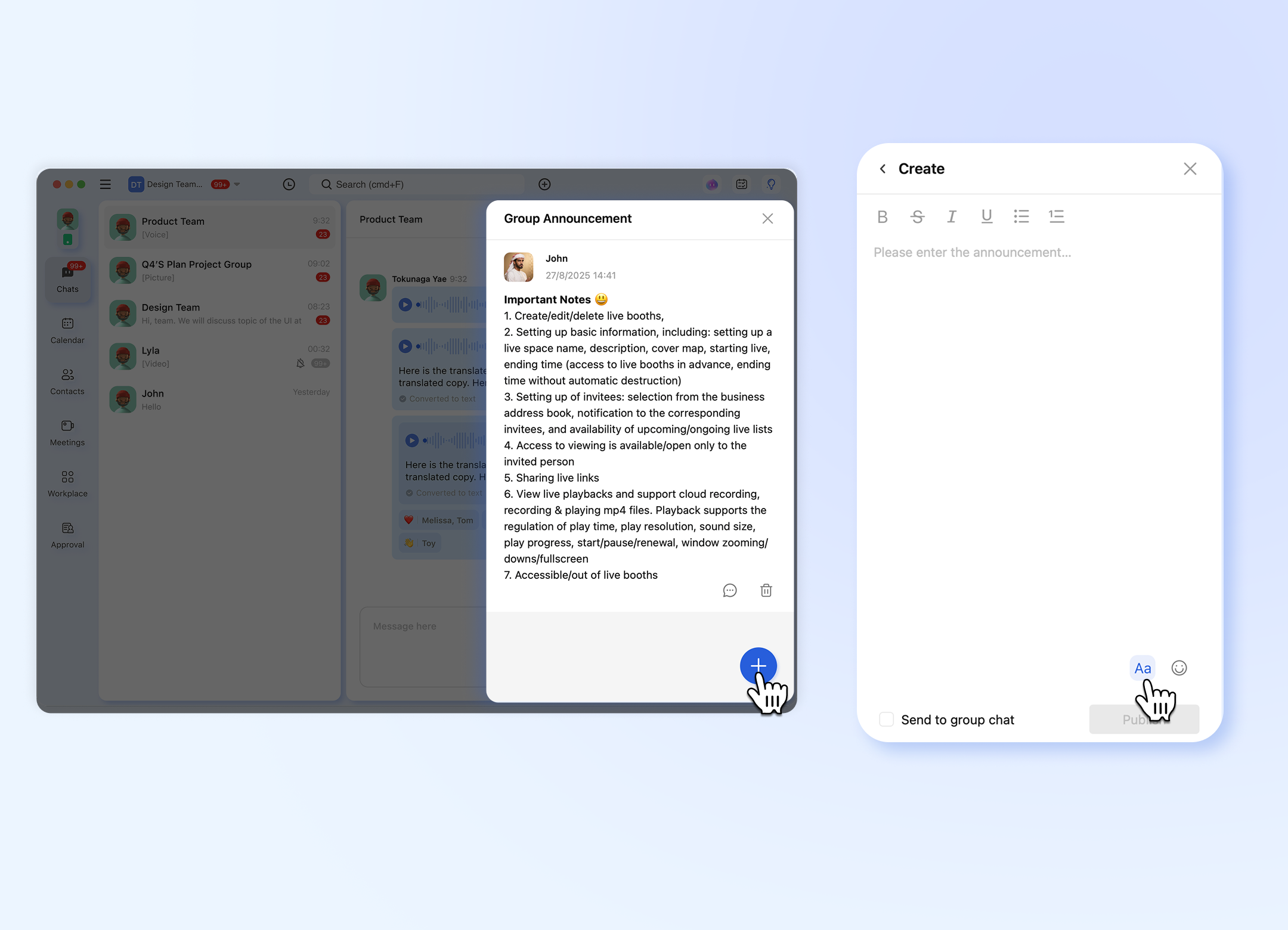
- Click the “+” button.
- In the creation pop-up, compose your content.
- Choose your preferences (all unchecked by default):
- "Send to chat": Check this box if you also want the announcement to be posted as a regular message in the group.
- "Rich Text": Check this icon to enable formatting options (e.g., Bold, Italic) for your content.
- “Insert Emoji”: Click the emoji button to add emojis to your announcement.
- Click "Publish" to post the announcement.
-
Open your target group chat.
-
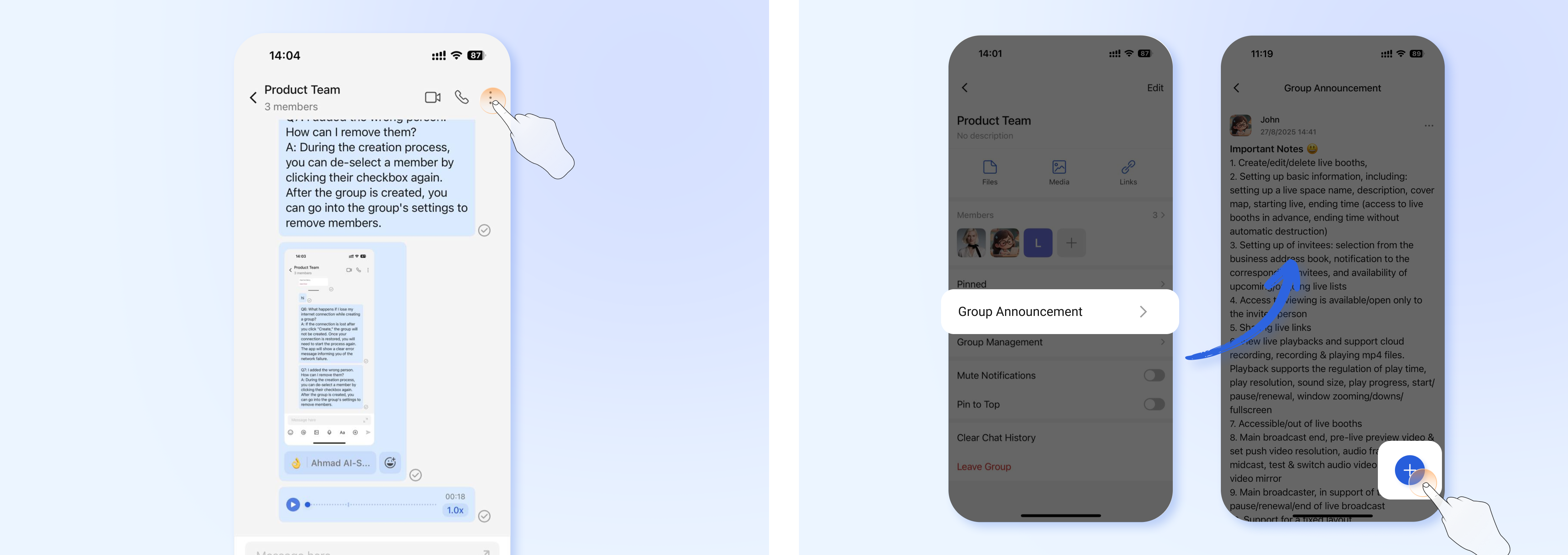
Tap the group name at the top to access Group Info.
-
Find and select "Announcements".
-
Tap the “+” button.
-
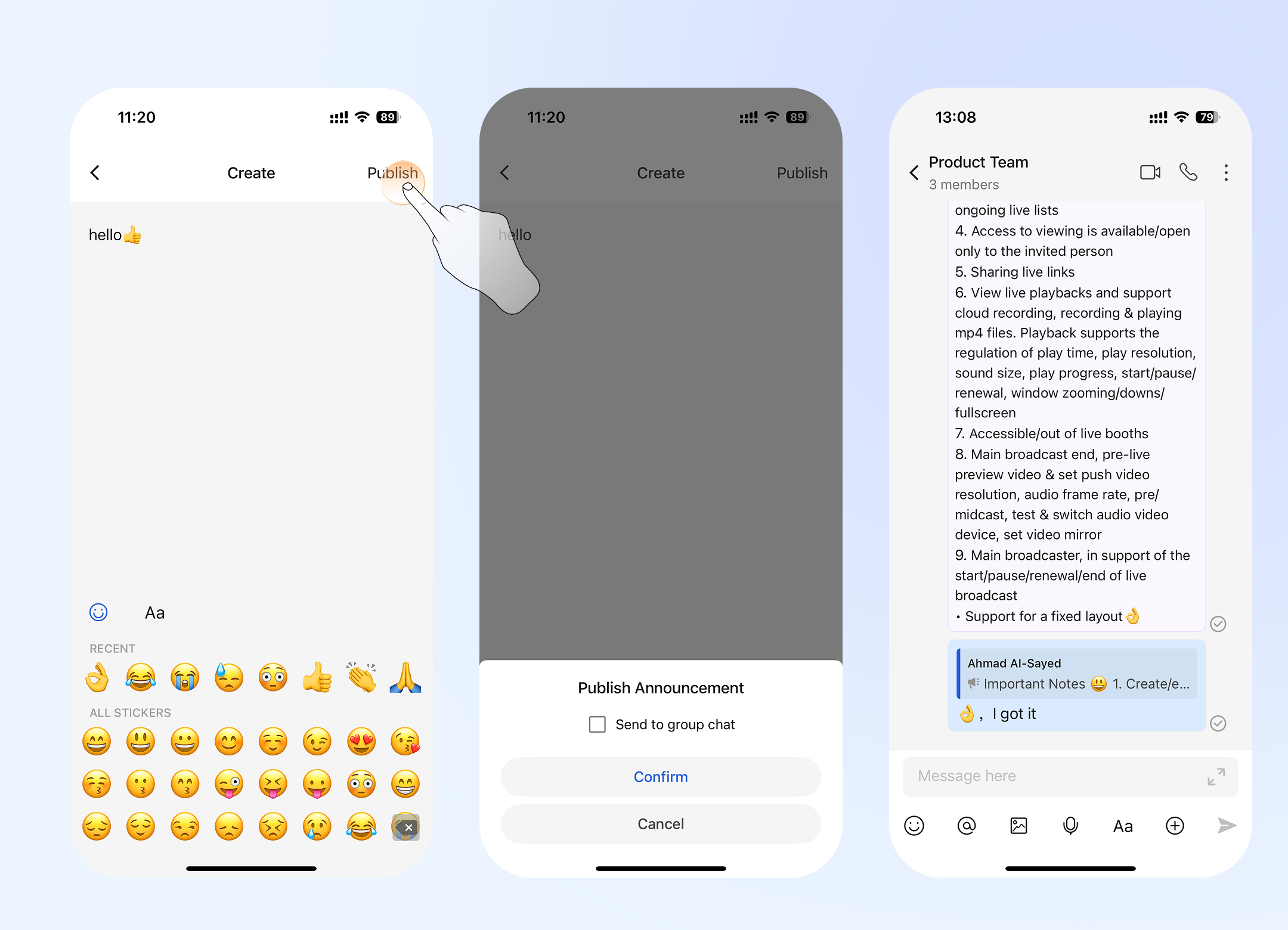
In the creation page, compose your content.
-
Choose your preferences (all unchecked by default):
- "Send to chat": Check this box if you also want the announcement to be posted as a regular message in the group.
- "Rich Text": Check this icon to enable formatting options (e.g., Bold, Italic) for your content.
- “Insert Emoji”: Click the emoji button to add emojis to your announcement.
-
Click "Publish" to post the announcement.
How to Edit or Delete an Announcement
- 💻Desktop Users
- 📱Mobile Users
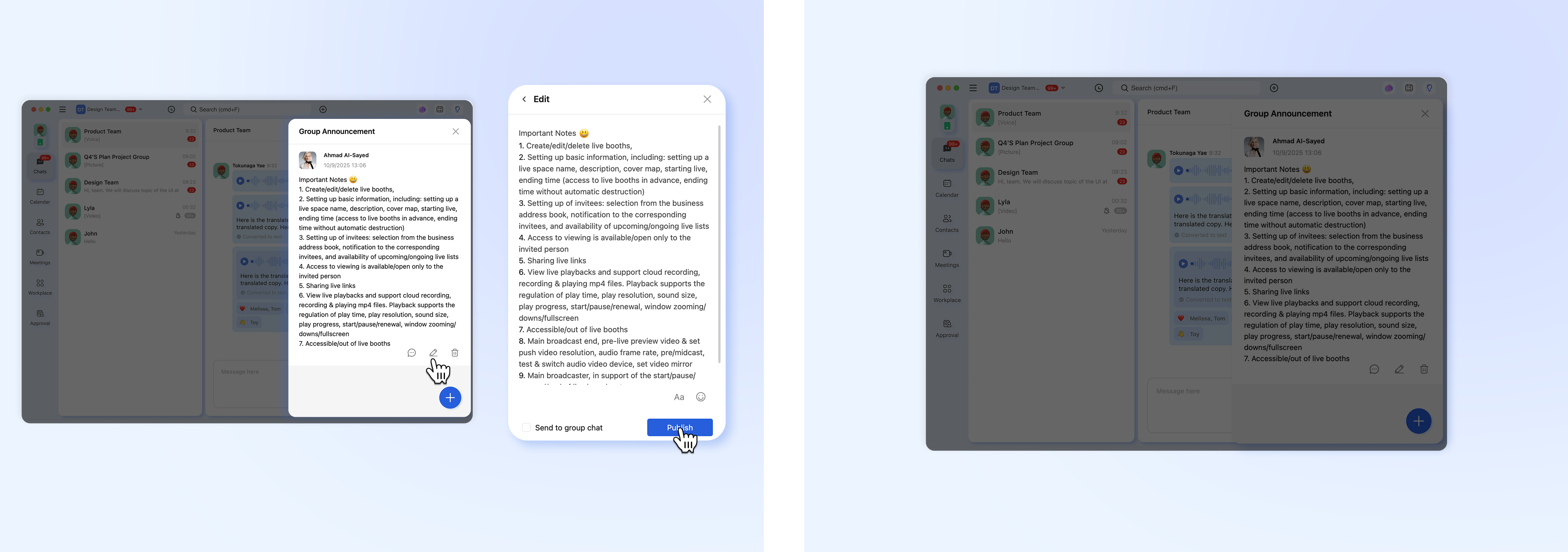
- Go to the "Announcement" tab in the group chat.
- Find the announcement you wish to modify.
Note on Permissions:
Edit: You can only edit announcements that you created yourself.
Delete:
Group Owners & Administrators can delete any announcement in the group.
Regular members can only delete announcements they created themselves.
- Select either "Edit" to make changes or "Delete" to remove it.
- Navigate to Group Info > "Announcements".
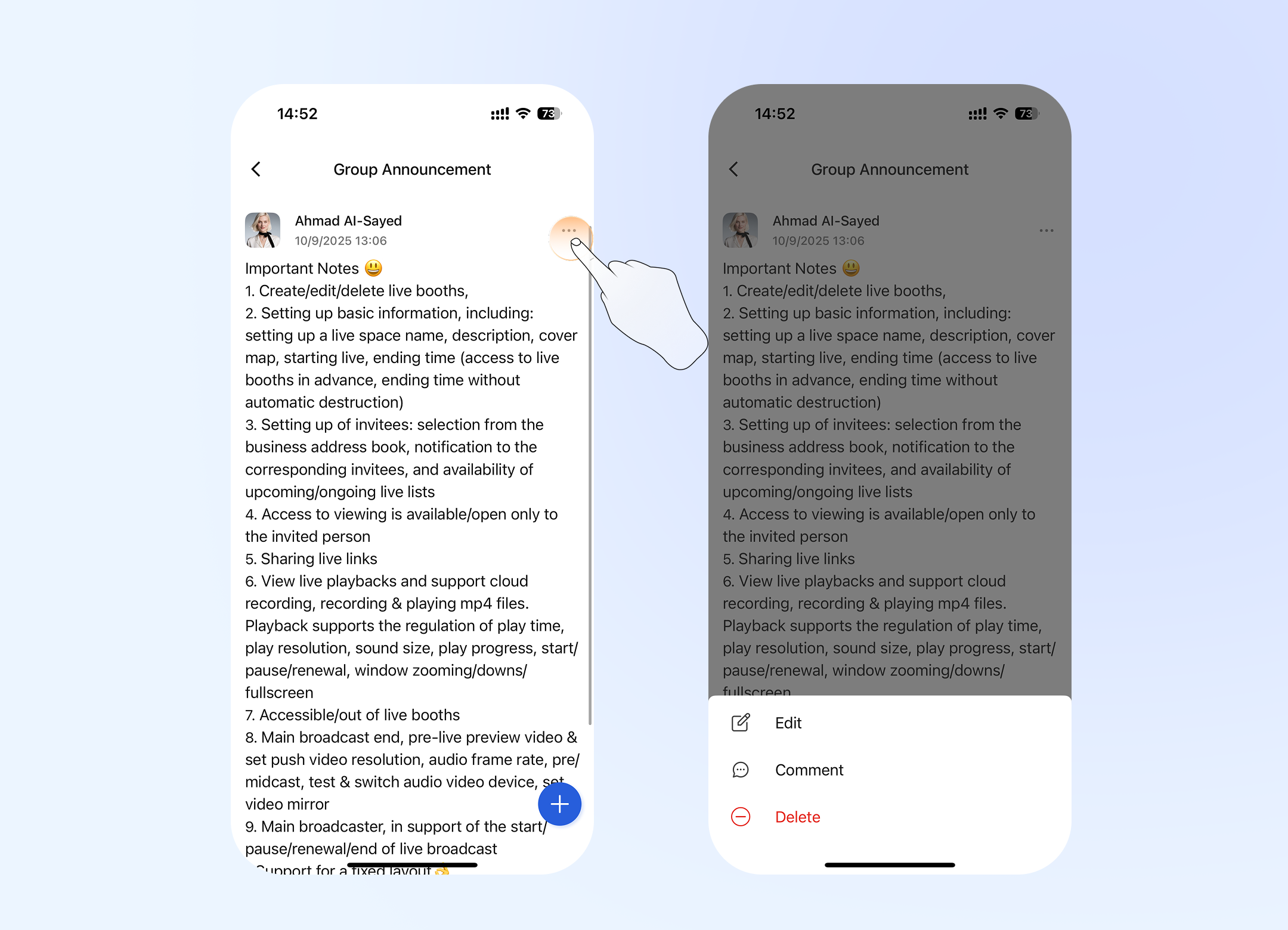
- Find and tap on the specific announcement you want to manage.
- Tap the "..." (More options) menu in the top corner.
Note on Permissions:
Edit: You can only edit announcements that you created yourself.
Delete:
Group Owners & Administrators can delete any announcement in the group.
Regular members can only delete announcements they created themselves.
- Choose "Edit" or "Delete" from the menu.
Please Note: Deletion is permanent and cannot be undone. Please proceed with caution.
Replying to an Announcement
- 💻Desktop Users
- 📱Mobile Users
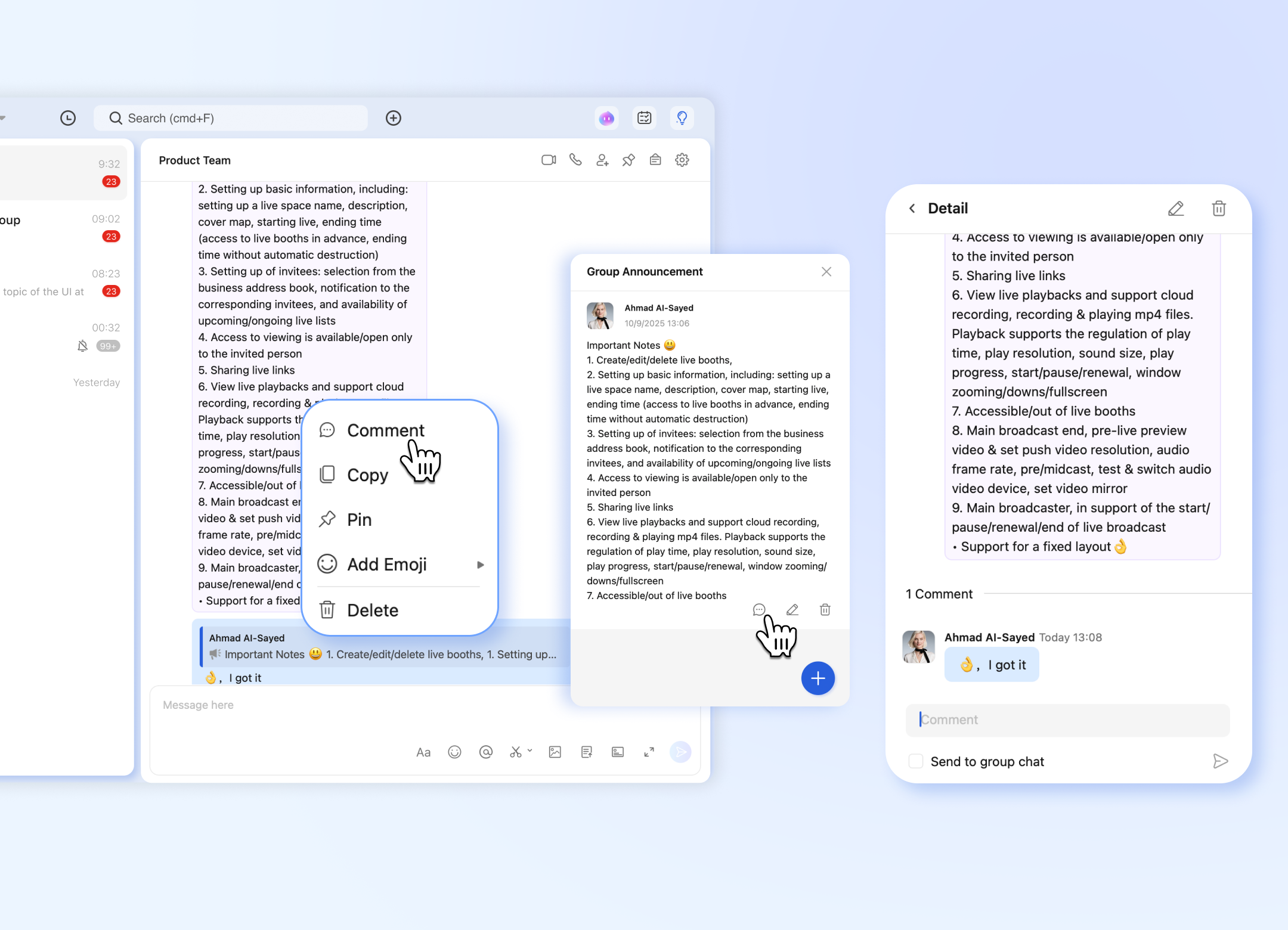
- Method 2 (From Chat): Find the announcement card in the group chat, click the "View Replies" or "Comment" button to open the thread and reply.
- Method 3 (From Announcements Tab): Go to the "Announcement" tab, find the announcement, and click the "Comment" button.
- Members type their reply in the thread. The option to "Send reply to chat" is unchecked by default to avoid spamming the main chat.
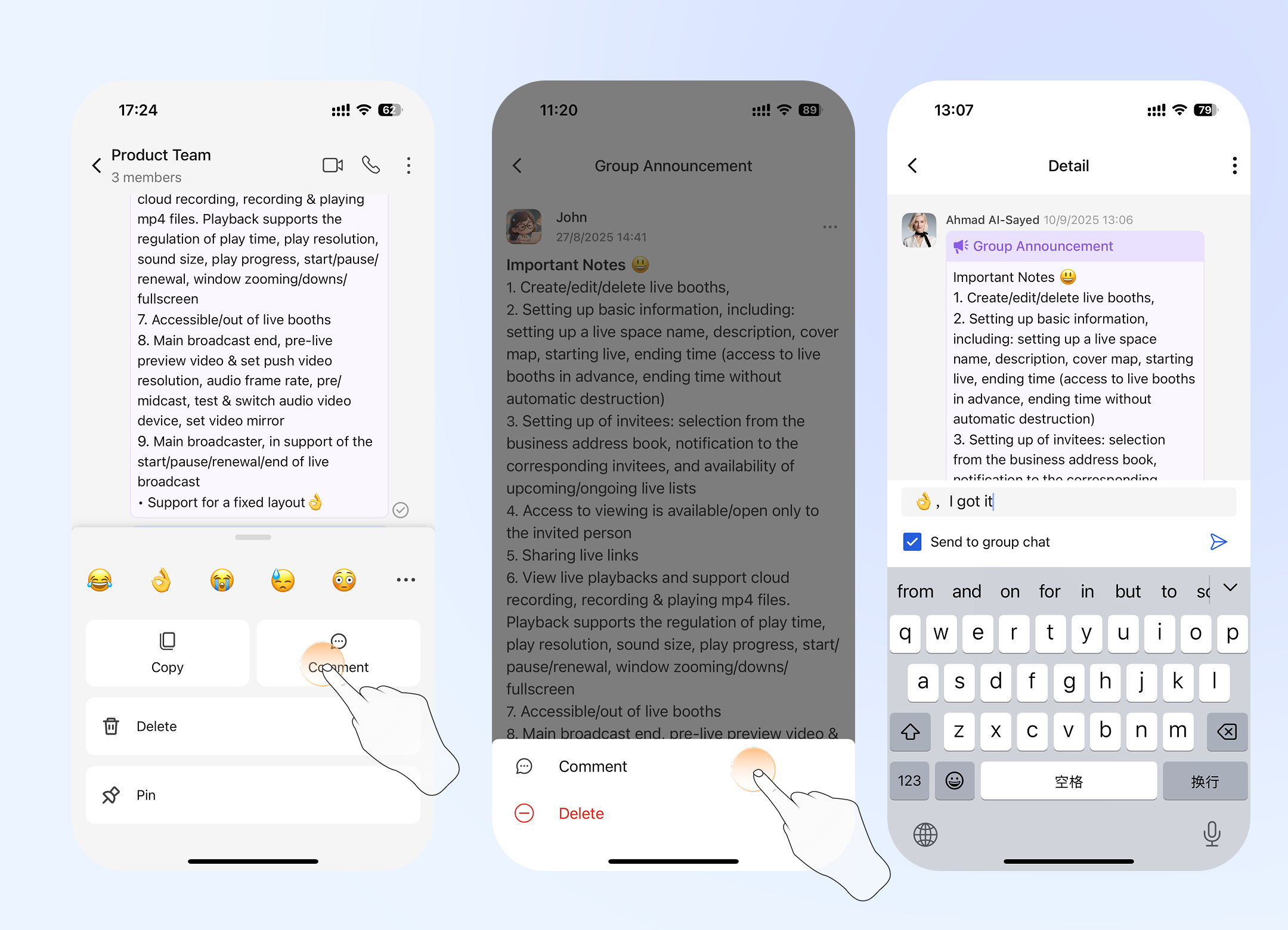
- Method 1 (From Chat): In the group chat, long press on the announcement message card. A menu will appear—select "Comment" to go directly to the reply thread.
- Method 2 (From Announcements List): Navigate to Group Info > "Announcements", tap on the specific announcement, then tap the comment icon or "View Replies" button.
- Members can then type their reply. The option to "Send reply to chat" is unchecked by default.
Managing Permissions (Who Can Post)
- 💻Desktop Users
- 📱Mobile Users
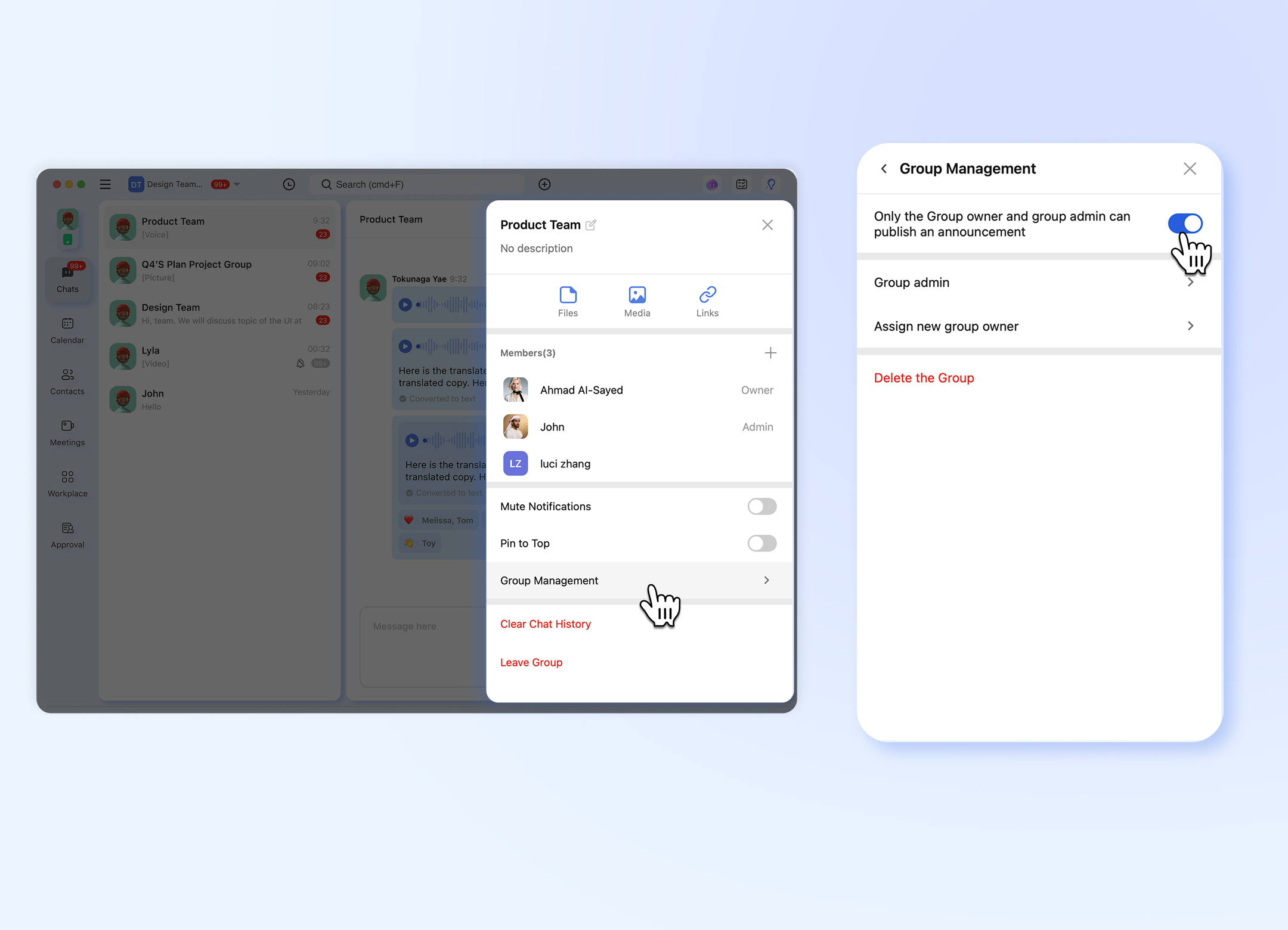
By default, only Group Owners and Administrators can create announcements. To change this:
- Go to Group Info > Group Management.
- Toggle the switch to allow "All Members" to post announcements.
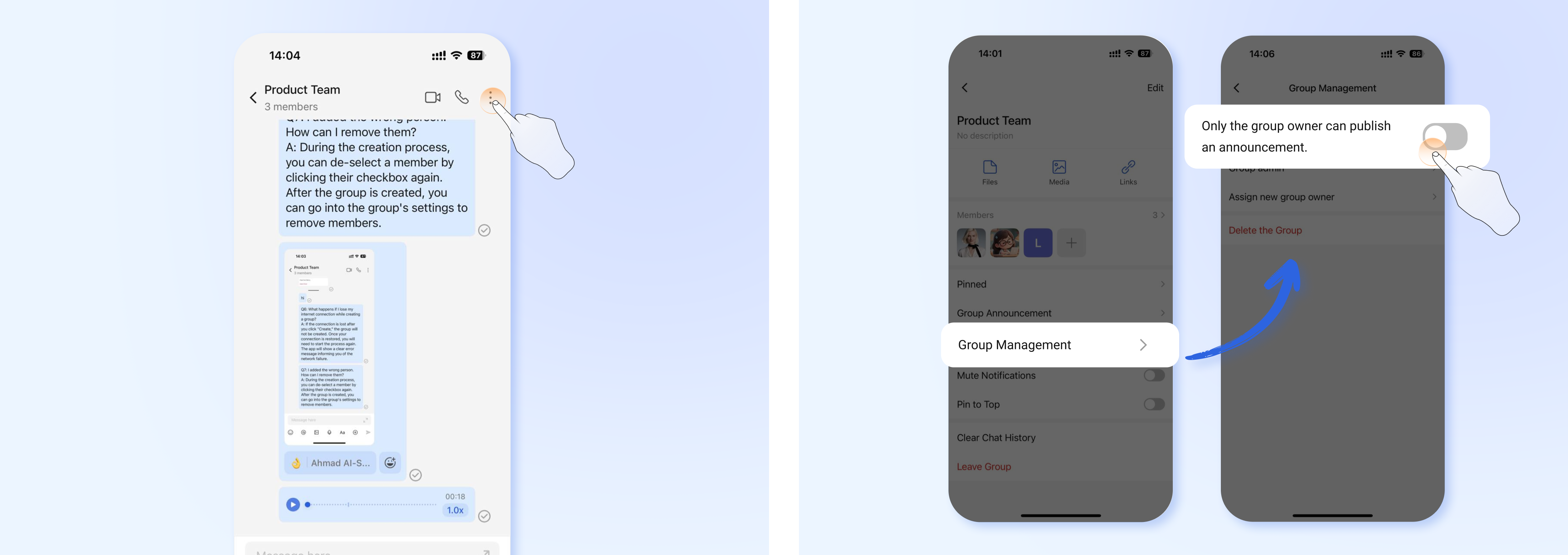
By default, only Group Owners and Administrators can create announcements. To change this:
- Go to Group Info > Group Management.
- Toggle the switch to allow "All Members" to post announcements.
Frequently Asked Questions (Q&A)
Q1: Who can create a group announcement?
A: By default, only Group Owners and Administrators have the permission to create announcements. This can be changed in Group Management settings to allow all members to post.
Q2: I posted an announcement by mistake. Can I edit it or take it down?
A: Yes. You can edit any announcement you created. You can delete your own announcements. Group Owners and Administrators can delete any announcement in the group. Please note that deletion is permanent.
Q3: Why can't I see the "Edit" or "Delete" option for an announcement?
A: You can only edit announcements you created yourself. If you cannot delete an announcement, it was likely created by someone else and you are not a group owner or administrator.